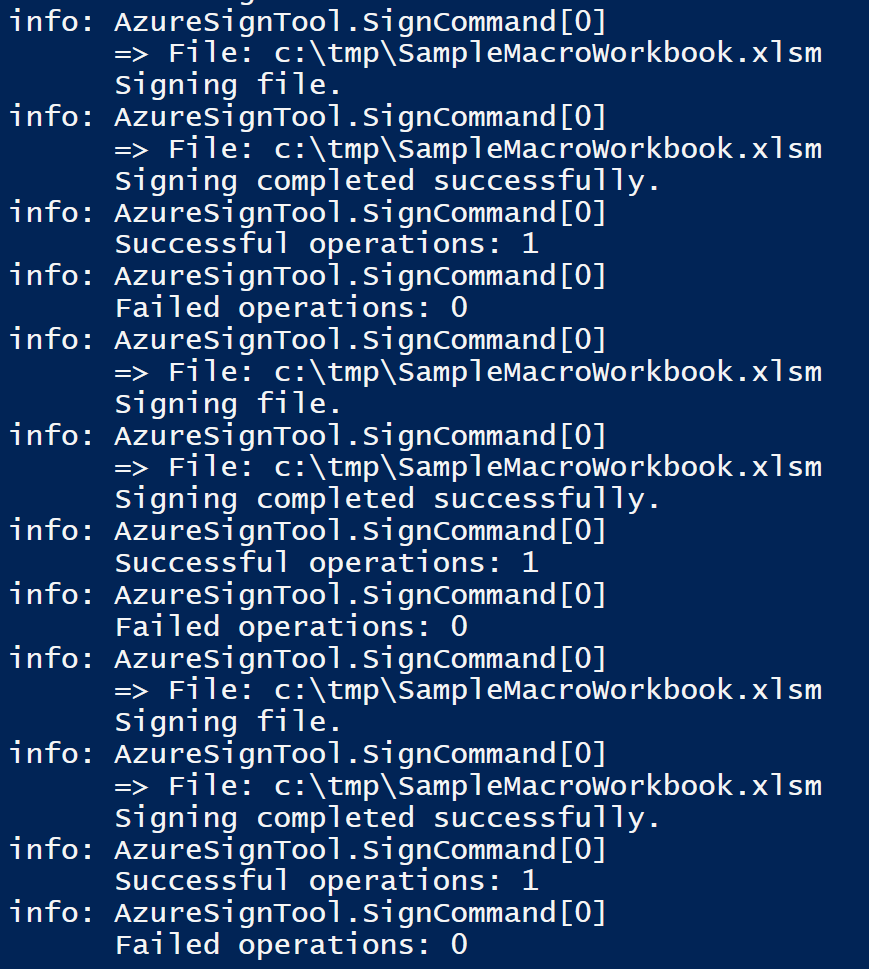
It may be tempting to click “Enable Macros” when you open a spreadsheet, but macros are executable programs. Without a digital signature, you have no idea who wrote the code or what it might do. Malicious macros are a common attack vector for ransomware, data theft and other malware. Insisting on digitally signed macros from trusted publishers closes this door to attackers and protects your organization.
Macros are one of Excel’s most powerful features: short Visual Basic for Applications (VBA) programs that automate repetitive tasks, manipulate data, or call other Office applications. However, the same automation that saves time also creates an attractive vehicle for malware. Microsoft warns that macros can introduce viruses or malicious software and therefore disables them by default.
The safest configuration in modern Office apps is “Disable all macros except digitally signed macros” – unsigned macros do not run, and macros signed by an untrusted publisher prompt the user to trust the publisher or disable the macro.
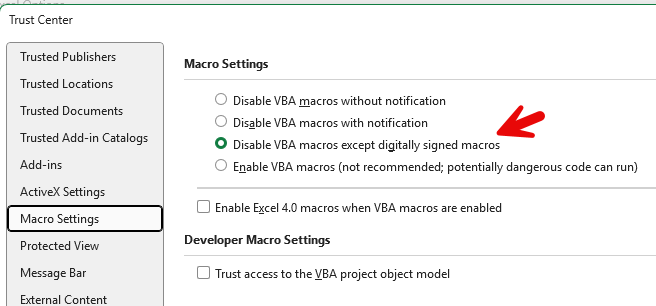
To make your macros work seamlessly in this environment, you must sign them with a code‑signing certificate and distribute the certificate to users as a trusted publisher.

This guide explains why you need to disable unsigned macros, how to obtain a code‑signing certificate, where to store the private key (SafeNet USB token or Azure HSM), how to sign the macro in Excel, and how to use Microsoft Intune to distribute the publisher certificate. Necessary scripts are provided in my Github. The guide focuses on Excel but the same approach applies to other Office applications.
Update (July 2026) — troubleshooting 800403F4 and script improvements
Since publishing this guide I have had a few reports of the signing step failing, and
I hit it myself on a freshly built machine. The script has been updated to handle
every cause I ran into. If you are seeing this error:
fail: AzureSignTool.SignCommand[0]
      Signing failed with error 800403F4.
…here is what is actually going on, and what changed.
The real cause: vbe7.dll cannot load
800403F4 is TRUST_E_SUBJECT_FORM_UNKNOWN — Windows is telling you that no Subject
Interface Package claims the file. The obvious conclusion is that the SIPs are not
registered, but in my case they were registered perfectly: all six function entries,
both DLLs, correct 32-bit hive.
The actual culprit is vbe7.dll, which ships inside the Office SIP package. It is the
VBE7 runtime that msosipx.dll uses to read the VBA project. If it cannot load, the
SIP silently declines every file, and the only symptom you ever see is 800403F4.
Two things in the SIP package readme must be in place, and neither was in my original
script:
1. The Visual C++ x86 runtime is required. vbe7.dll depends on it. Without it,LoadLibrary fails with error 126 (“the specified module could not be found”) on a
file that plainly exists — because it is a dependency that is missing, not the DLL.
https://download.microsoft.com/download/C/6/D/C6D0FD4E-9E53-4897-9B91-836EBA2AACD3/vcredist_x86.exe2. vbe7.dll must be discoverable via the registry. The readme says it can sit
alongside the SIP DLLs — but that resolves against the calling process’s search path,
and signtool/AzureSignTool live somewhere else entirely. Register the full path:
HKEY_LOCAL_MACHINE\SOFTWARE\Microsoft\VBA
    REG_SZ  Vbe71DllPath = C:\Program Files\Microsoft Office SIPs\vbe7.dll
Write it to SOFTWARE\WOW6432Node\Microsoft\VBA as well, since the SIP is 32-bit and
reads the redirected view.
The updated script does both automatically and verifies vbe7.dll actually loads in a
32-bit process before it attempts to sign — so you get a clear message instead of a
hex code.
winget will not install the x86 .NET SDK
This one caught a reader too. The original script called:
winget install --id Microsoft.DotNet.SDK.8 --architecture x86 ...winget matches on package ID only. If the x64 SDK is already installed it reports
“Found an existing package already installed… No available upgrade found” and never
lays down the x86 payload. C:\Program Files (x86)\dotnet\dotnet.exe is silently
never created, and every subsequent step fails. The updated script uses the officialdotnet-install.ps1 with an explicit -Architecture x86 -InstallDir, which works
reliably.
Now on .NET 10 and AzureSignTool 7.0.1
.NET 8 goes out of support on 10 November 2026, so the script now defaults to the
.NET 10 LTS channel with AzureSignTool 7.0.1. These two must be kept in step — 7.x
targets .NET 10, while 6.0.0 and 5.0.0 target .NET 8 — so both are set at the top of
the script with a note explaining the pairing.
For the record: AzureSignTool 7.0.1 signs VBA projects without any problem. If you are
hitting 800403F4, do not waste time downgrading the tool. It is almost certainlyvbe7.dll.
Other fixes in the updated script
- Native commands do not throw. The original wrapped
dotnetcalls intry/catch,
which does nothing — native executables set$LASTEXITCODEinstead. Failures passed
silently until something later blew up. Now every call checks its exit code. regsvr32 /shides failures. Registration is now run with the exit code captured,
so a failed SIP registration is reported instead of being swallowed.- The NuGet source check was always true.
dotnet nuget list sourcereturns a
string array, and-notmatchagainst an array returns the non-matching elements,
not a boolean — which is always truthy. It is joined to a single string first now. Pop-Locationwas skipped on failure. Wrapped intry/finally.- Signing now works on a staging copy and keeps the unsigned original as
<file>.unsigned. This matters more than it looks: once a file has the legacy and
agile signatures, signing it again only overwrites the third signature. Staging from
the pristine original means every run produces a proper Legacy → Agile → V3 set.
(offclearsig.exe, in the SIP folder, is the alternative — it strips existing
signatures in place.) - A pre-check for the VBA project. The SIP signs the VBA project, not the workbook.
If there is noxl\vbaProject.binthere is genuinely nothing to sign, and the script
now says so instead of failing later with800403F4.
Verifying afterwards
Open the file, press Alt+F11, then Tools → Digital Signature to confirm the
certificate. Note that signtool verify /all and /ds do not work with the VBA
triple-signature format — it is not the same as the native Windows multi-signature
mechanism, and only one signature is ever validated on a given file.
Content
- Why bother signing macros?
- Obtaining a code‑signing certificate
- Implementation using Azure HSM
- Safenet signing
- Signing your regular files with Azure Sign Tool (optional)
- Why PFX Method isn’t supported anymore ?
- Configuring macro security
- Deploying the trusted publisher certificate with Intune
- Best practices and recommendations
- Conclusion
Why bother signing macros?
Macros are powerful but risky
Excel macros contain executable code. Users often share workbooks through email or file shares, and malicious actors take advantage of this trust to deliver malware. Microsoft’s documentation states that macros can pose a security risk because they may introduce viruses or malicious software. For that reason, Office disables all macros by default and warns you never to enable a macro unless you know what it does.
Digital signatures prove origin and integrity
A digital signature uses a certificate issued by a public certificate authority (CA) to bind the macro to your organization’s identity. When you sign a macro project, Office embeds a cryptographic signature into the file. When a user opens the document, the Office Trust Center verifies that the signature comes from a trusted publisher and that the macro has not been altered. Signed macros help users avoid untrusted content because they run silently only if the certificate is in the Trusted Publishers store; otherwise, users receive a prompt and can decide whether to trust the publisher. A signature also helps detect tampering—if someone modifies the macro, Office removes the signature and the code no longer runs.
Protecting the signing key is essential
Because a macro signature proves authenticity, an attacker could misuse your signing certificate to sign malicious macros. Keyfactor’s security guide notes that protecting the private key used to sign macros is critical because attackers seek to steal code‑signing certificates and sign malware. To mitigate this, certificate vendors deliver keys on hardware security modules (HSMs) or hardware tokens. Two common options are:
- SafeNet USB tokens – Vendors such as DigiCert and their resellers ship the certificate on a SafeNet eToken. RapidSSL’s setup instructions describe installing the SafeNet Authentication Client and DigiCert’s Hardware Certificate Installer to initialize the token, enter a token password and load your certificate. The token protects the private key and requires a PIN each time you sign code.
- Cloud HSM (Azure Key Vault) – Cloud solutions like DigiCert’s KeyLocker and Azure Key Vault store the private key in a cloud‑based HSM. When creating an Extended Validation (EV) code‑signing certificate in Azure Key Vault, the Premium SKU is required because it includes support for HSM‑backed keys. Azure Key Vault stores the key in an HSM so it cannot be exported, and the CA requires an HSM Private Key Agreement.
Both approaches satisfy modern CA requirements for private‑key protection and are compatible with Office macro signing.
Obtaining a code‑signing certificate
Choose the right certificate
For Excel macros you need a certificate that supports Code Signing. Many CAs offer Organization‑validated or Extended Validation (EV) certificates. EV certificates provide higher assurance and always require storing the key in a hardware token or HSM. Vendors such as DigiCert, GlobalSign, Sectigo or Keyfactor sell code‑signing certificates; your company may also issue internal code‑signing certificates through its PKI.
Storage options
After the CA validates your organization, it will either:
- Ship a SafeNet token containing the certificate and initialization instructions. You initialize the token, set a PIN and install the certificate using the vendor’s installer.
- Allow cloud HSM enrollment where you generate the key in Azure Key Vault (Premium) and submit a certificate signing request (CSR). The key type must be RSA‑HSM and the key is non‑exportable. The CA then provisions the certificate; you import it back into your Key Vault.
Timestamping
When signing macros, include a timestamp so the signature remains valid even after the certificate expires. Adding a timestamp ensures a macro remains treated as signed after the certificate’s expiration as long as the certificate is not revoked. Many vendors provide timestamp servers (e.g., DigiCert’s http://timestamp.digicert.com ).
Implementation of Signing using Azure HSM
Step 1: Code Signing onboarding
- Setup Azure Premium Keyvault
- Make certificate
- Download CSR
- Issue/re-issue via Trustzone / GlobalSign
- Azure Keyvault, Certificate, Certificate Operation: Merge certificate
Sample of detailed guide from vendor Trustzone – purchasing an eV Code Signing certificate for Azure
Step 2: Create App in Entra ID
Use guide below as sample
https://trustzone.com/knowledge-base/how-to-sign-files-with-azure-sign-tool
Step 3: Delegate permissions to App in Azure Keyvault
App must be delegated these 2 RBAC roles on Azure Keyvault:
- Key Vault Certificate User
- Key Vault Secrets User
App must be having Reader permissions on resource group where Azure keyvault exist
Step 4: Signing your VBA macros in Excel using script
I have provided the steps below to sign your VBA macros in your Excel files. Signing happens with your public Code Signing certificate stored in Azure HSM.
The script can also be found on my Github here
<#
Signing of Excel Macro files using Azure Key Vault
Runs AzureSignTool via dotnet tool run (x86) to avoid ASR block on user-profile EXEs
Created by Morten Knudsen (aka.ms/morten) — Updated
#>

################################################################################
# VARIABLES
################################################################################

# Microsoft Office Subject Interface Packages (SIPs)
$tmp  = "$env:TEMP\officesips.exe"
$url  = "https://download.microsoft.com/download/f/b/4/fb46f8ca-6a6f-4cb0-b8f4-06bf3d44da48/officesips_16.0.16507.43425.exe"
$dest = "C:\Program Files\Microsoft Office SIPs"

# Signing details
$VaultUri = "https://<keyvault name>.vault.azure.net"
$CertName = "<Keyvault certificate name>"     # KV certificate object name
$TenantId = "<tenant id>"
$ClientId = "<clientid>"
$ClientSecret = "<App Secret>"
$TimeStampUrl = "http://timestamp.globalsign.com/tsa/r6advanced1"  # or your TSA of choice
$FileToSign = "<XLSM file>"

# Use x86 dotnet host explicitly (important for Office SIP compatibility)
$DotNetX86 = "C:\Program Files (x86)\dotnet\dotnet.exe"

# Local tool workspace for dotnet tool manifest (so we can use `dotnet tool run`)
$ToolWorkDir = Join-Path $env:TEMP "signing-tool-workdir"

################################################################################
# PRE-CHECKS
################################################################################

# Admin is required for regsvr32 and most installs
$IsAdmin = ([Security.Principal.WindowsPrincipal] [Security.Principal.WindowsIdentity]::GetCurrent()
).IsInRole([Security.Principal.WindowsBuiltInRole]::Administrator)
if (-not $IsAdmin) { throw "Please run PowerShell as Administrator." }

# Unblock the macro file if it came from the internet
Unblock-File -Path $FileToSign -ErrorAction SilentlyContinue

################################################################################
# STEP 1: INSTALLATION (ONE-TIME)
################################################################################

# Ensure SIPs are present and registered
New-Item -ItemType Directory -Force -Path $dest | Out-Null
Invoke-WebRequest -Uri $url -OutFile $tmp
Start-Process -FilePath $tmp -ArgumentList "/extract:`"$dest`" /quiet" -Wait
regsvr32 /s "$dest\msosip.dll"
regsvr32 /s "$dest\msosipx.dll"

# Ensure .NET SDKs (x64 + x86) are installed
winget install --id Microsoft.DotNet.SDK.8 --source winget --architecture x64 --accept-package-agreements --accept-source-agreements
winget install --id Microsoft.DotNet.SDK.8 --source winget --architecture x86 --accept-package-agreements --accept-source-agreements

# NuGet source (idempotent) – no -ErrorAction (dotnet nuget doesn't support it)
try {
  dotnet nuget add source https://api.nuget.org/v3/index.json -n nuget.org 2>$null
} catch {
  # ignore if it already exists
}

# Prepare a local tool manifest so we can run "dotnet tool run AzureSignTool"
New-Item -ItemType Directory -Force -Path $ToolWorkDir | Out-Null
Push-Location $ToolWorkDir
if (-not (Test-Path ".config\dotnet-tools.json")) {
  & $DotNetX86 new tool-manifest | Out-Null
}

# Install (or update) AzureSignTool as a *local* tool into this workdir
# Using x86 dotnet host ensures the tool runs in a 32-bit context
try {
  & $DotNetX86 tool install AzureSignTool | Out-Null
} catch {
  & $DotNetX86 tool update AzureSignTool | Out-Null
}

################################################################################
# STEP 2: SIGN FILE (3 PASSES)
################################################################################

for ($i = 1; $i -le 3; $i++) {
  Write-Host "Signing pass $i..." -ForegroundColor Cyan
  & $DotNetX86 tool run AzureSignTool -- sign `
    "$FileToSign" `
    -kvu "$VaultUri" -kvc "$CertName" `
    -kvt "$TenantId" -kvi "$ClientId" -kvs "$ClientSecret" `
    -tr "$TimeStampUrl" -td sha256
  if ($LASTEXITCODE -ne 0) {
    throw "AzureSignTool failed on pass $i with exit code $LASTEXITCODE."
  }
}

Pop-Location
Write-Host "Signing completed successfully." -ForegroundColor Green
SafeNet signing
Once you have your certificate on a SafeNet token, follow these steps to sign the macro project. For SafeNet tokens, you will be prompted for your token PIN when you select the certificate.
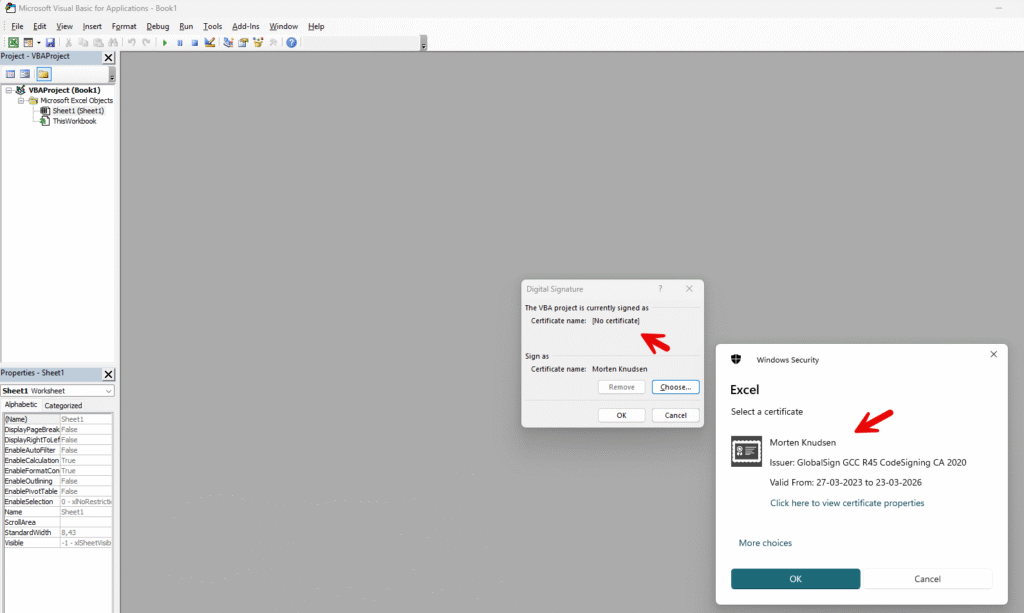
- Open the workbook containing the macro project. You can also click ALT + F11 inside Excel.
- Enable the Developer tab if it isn’t already visible (File → Options → Customize Ribbon → check Developer).
- On the Developer tab, click Visual Basic to open the VBA editor. Y
- In the Project Explorer, select the VBA project you want to sign.
- Choose Tools → Digital Signature. In the Digital Signature dialog, click Choose, select your certificate (it will appear under the token or HSM provider) and click OK.
- Save the workbook. Excel embeds the digital signature. If you later modify any code, the signature is removed and you must re‑sign before distributing.

Signing your regular files with Azure Sign Tool (optional)
https://trustzone.com/knowledge-base/how-to-sign-files-with-azure-sign-tool
The steps are:
1) Install Azure Sign Tool on Computer
dotnet nuget add source https://api.nuget.org/v3/index.json -n nuget.org

dotnet tool install --global AzureSignTool

2) Create App in Entra ID

3) Delegate permissions to app on keyvault
Key Vault Certificate User
Key Vault Secrets User

4) Sign file (sample)

azuresigntool sign -kvu https://xxxxx.vault.azure.net -kvt xxxxx -kvc xxxxCodeSigning -kvi xxxxxxxxxf00ace1 -kvs xxxxxx -tr http://timestamp.globalsign.com/tsa/r6advanced1 -td <filename>
Why PFX Method isn’t supported anymore ?
- You’ll be out of compliance (and often can’t even buy one). Since June 1, 2023, the CA/Browser Forum requires all publicly-trusted code-signing cert private keys (OV and EV) to be hardware-protected (FIPS 140-2 L2 or CC EAL4+). That means cloud/HSM (e.g., Azure Key Vault/Managed HSM or a vendor cloud HSM) or a hardware token (Thales/SafeNet). A plain .PFX (software key) no longer meets the baseline and most CAs stopped issuing them that way.
- Higher breach risk. A .PFX is an exportable file protected only by a password. If it’s copied from a build agent, laptop, or share, an attacker can sign malware with your identity. The hardware-only rule was created precisely to reduce stolen-key abuse.
- Weaker custody & auditing. With a .PFX, it’s hard to prove who used the key and when. HSM/token approaches can enforce non-exportable keys and provide stronger operational controls (policies, PIN, RBAC, logs).
- Macro/VBA quirks won’t be “fixed” by using PFX. Office’s VBA signer uses legacy hashing (MD5 is referenced in vendor guidance). Some modern tokens/HSMs disable legacy algorithms, which is why people hit “VBA project could not be signed” errors—but switching to a PFX doesn’t solve the root security problem, it just avoids the hardware policy. Better to follow vendor-specific workarounds or managed cloud signing designed for VBA.
When is .PFX still okay?
- Private/inside your org only: If you’re using an internal/private CA purely for internal macro signing and you control every endpoint’s trust, you can technically use a PFX. It’s just not acceptable for publicly-trusted code signing anymore. If you go this route, lock it down (dedicated signing host, strict ACLs, no network shares, tight monitoring/rotation) and plan a move to HSM/cloud signing.
Recommended path
- For public CA code signing (including macros that leave your tenant): use an HSM-backed option—Azure Key Vault Premium/Managed HSM or a vendor cloud HSM/token offering—so you’re compliant and safer. If you hit VBA-specific signing errors with hardware, follow your CA’s guidance for VBA signing or use their managed cloud-signing service that supports Office/VBA flows.
Configuring macro security
To ensure that only trusted macros run automatically:
- In Excel, go to File → Options → Trust Center → Trust Center Settings → Macro Settings.
- Select Disable all macros except digitally signed macros. This setting disables unsigned macros but allows macros signed by a trusted publisher to run without notification.
- Optionally uncheck “Enable Excel 4.0 macros” unless you need legacy XLM macros.
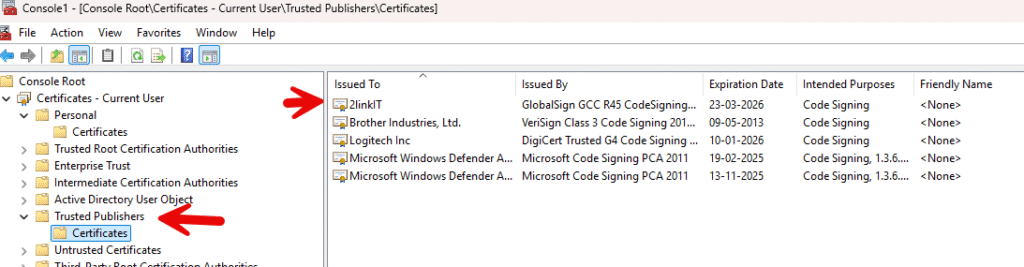
For a signed macro to run silently, the signing certificate (or its issuing CA) must be in the Trusted Publishers store on the user’s computer. If the certificate is not trusted, users will be prompted to trust the publisher the first time they run the macro.
Deploying the trusted publisher certificate with Intune
Why distribute the certificate?
When a user runs a signed macro, Office checks whether the certificate’s subject matches a trusted publisher. If the certificate is not in the Trusted Publishers store, Office displays a security warning and asks whether to trust the publisher Administrators can avoid this prompt by pre‑installing the certificate into the Trusted Publisher and Trusted Root stores on corporate devices.
Using a PowerShell script
Microsoft Intune (Endpoint Manager) allows you to deploy PowerShell scripts to managed Windows devices.
I have provided detection/remediation script on my Github
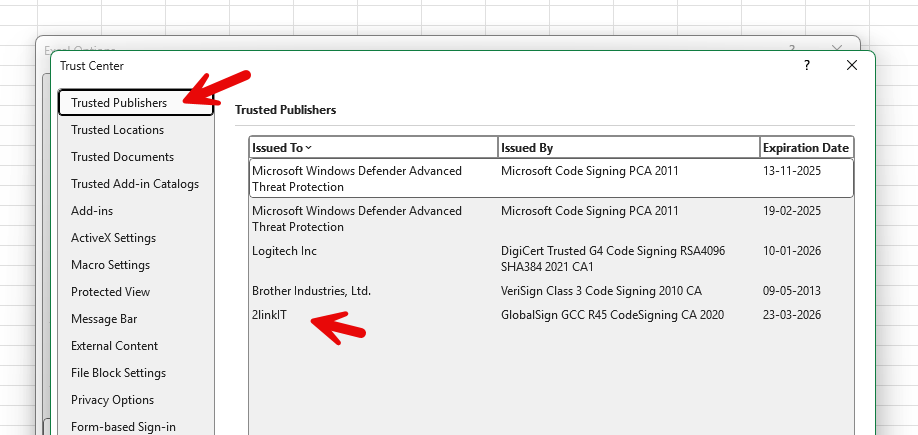
Best practices and recommendations
- Restrict macros by default – Keep macro settings at the most restrictive level and only allow digitally signed macros. Educate users not to enable macros in unknown documents.
- Use a reputable CA and protect the private key – Choose a well‑known CA and store the signing key in a SafeNet token or HSM as required by CA guidelines. RapidSSL’s instructions emphasise that SafeNet tokens should be initialized with a strong PIN and that existing certificates on the token will be deleted during installation. The Azure Key Vault approach requires the Premium SKU and the RSA‑HSM key type to ensure the private key resides in an HSM.
- Timestamp signatures – Add a timestamp so macros remain valid after certificate expiration.
- Re‑sign after modifications – Any change to the macro code invalidates the signature; re‑sign before distribution.
- Test before signing – Sign macros only after thoroughly testing your solution. Once signed, modifications remove the signature, so plan for finalization before signing.
Conclusion
Digitally signing Excel macros protects users and your organization by ensuring that macros originate from a trusted source and have not been altered.
Modern Office security settings disable unsigned macros by default, so signed macros and trusted publishers are essential for seamless operation.
Obtaining a code‑signing certificate, storing the private key securely on a SafeNet token or in an HSM like Azure Key Vault, signing the macro in Excel, and deploying the publisher certificate through Intune are the key steps to implement a secure macro strategy.
By following the detailed steps above and enforcing macro‑security policies, you can provide automation benefits without exposing your organization to malware.
Tip: the old IE settings trusted sites unblocks macroes in these locations.
Because macros aren’t blocked in files from these locations, you should manage these locations carefully. Be sure you control who is allowed to save files to these locations.
https://learn.microsoft.com/en-us/microsoft-365-apps/security/internet-macros-blocked
Bitter erfaring :S
Hi Morten,
Thank you so much for this. After going round and round in circles trying to to sign my VBA code with our new HSM certificate, your solution above worked.
One thing I think perhaps you should highlight even more than already have, is the fact that it ONLY works with the 32 bit version of DotNet.exe. I didn’t have this file on my machine in c:\Program Files (x86) and the installation steps of the script didn’t install it. So rather than reading your comment saying it was important to use x86 for sip compatibility, I just swapped to the 64 bit version in c:\program files\dotnet which, as you know, didn’t work.
Eventually I got the 32 bit version from https://builds.dotnet.microsoft.com/dotnet/Sdk/8.0.416/dotnet-sdk-8.0.416-win-x86.exe and it all worked perfectly.
Thanks again for sharing this
Rob