This blog was created in response to recent policy changes related to the WeTransfer cloud storage service. These changes raised general concerns that company data might be used to train AI models if sent through services like WeTransfer, Dropbox, or Google Drive.
DISCLAIMER
WeTransfer confirms that your data is NOT used to train AI - Link to full article
Your content is always your content. This is specified in section 6.2. Ownership of Content of our Terms of Service, which says: “We do not claim any ownership rights to the Content. You or your licensors own and retain all right, title, and interest, including all intellectual property rights, in and to the Content.

We don’t use machine learning or any form of AI to process content shared via WeTransfer.
Being a Microsoft person, I advocate for using Sharepoint (preferred) and maybe OneDrive to exchange data – but sometimes partners are using other services.
Goal: Block Upload – but Allow Download
Multiple customers have reached out asking for my help in ensuring that upload to these 3rd party services was blocked – while allowing download to happen.
High-level steps to complete the configuration
Step 1: Client – Purview Extension for Google Chrome & Firefox (Otional)
Step 2: Purview settings (DLP settings)
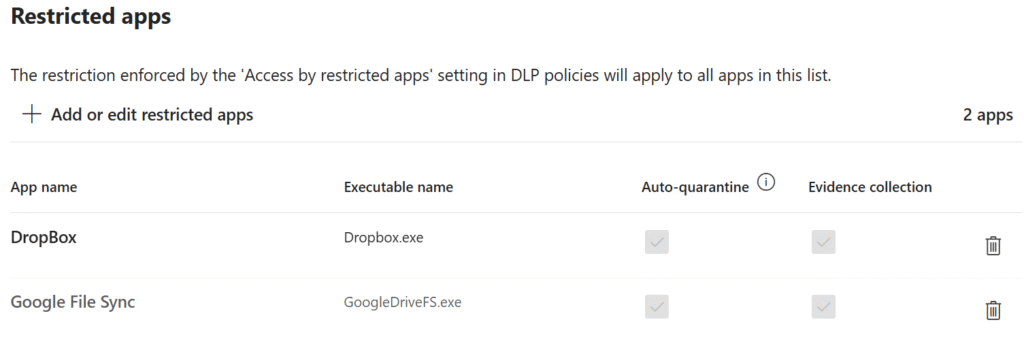
- Step 2A: Block Sync-tools like Dropbox.exe and GoogleSyncFS.exe (‘Restricted apps and app groups’)
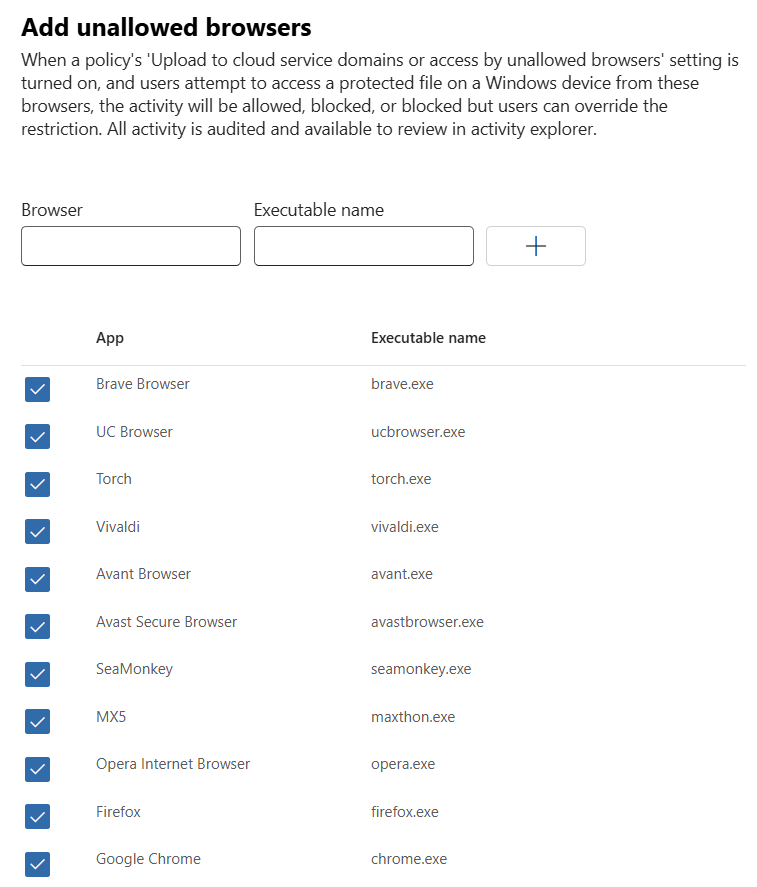
- Step 2B: Block unallowed browsers to force browser communication to happen in allowed browsers (Edge or supported browsers with Purview extension like Chrome & Firefox)
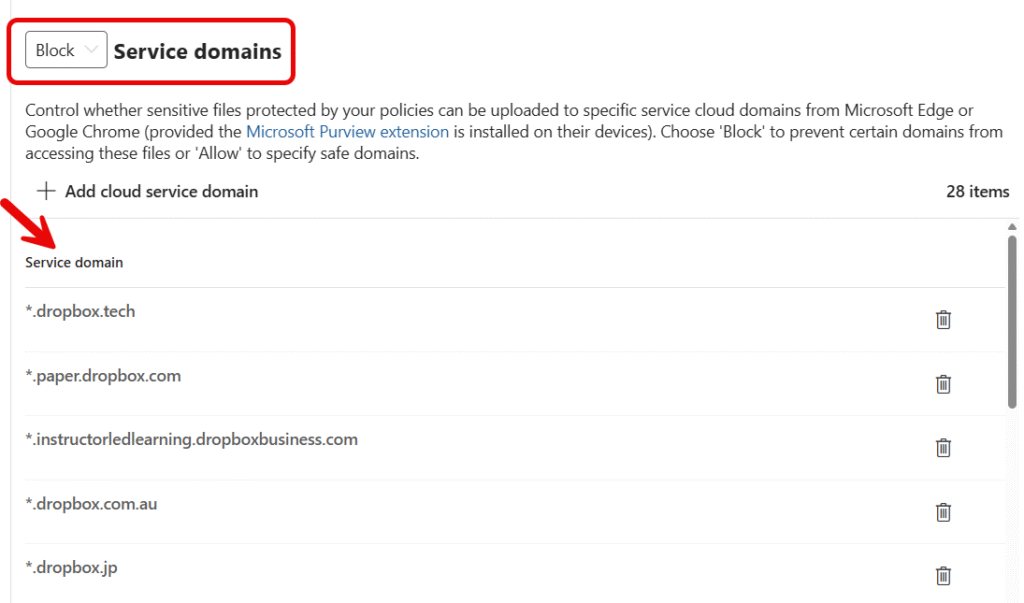
- Step 2C: Block domains for Dropbox, WeTransfer, Google Drive
- Step 2D: Block Sensitive service domains (group) for Dropbox, WeTransfer, Google Drive
Step 3: Deploy Purview DLP Policy
Step 5: Verify Upload is Blocked, while Download is Allowed
Step 6: Ensure additional storage providers are restricted in Outlook on the web
Step 1: Client – Purview Extension for Google Chrome & Firefox (Optional)
Edge is the recommended browser as it supports Microsoft Purview by default.
If you are using Google Chrome and/or Firefox, you are recommended to deploy the Purview extension. This way, you get more of less the same capabilities as in Microsoft Edge.
See Microsoft guides on how to deploy using your preferred method (Intune, GPO)
- Get started with the Microsoft Purview extension for Chrome
- Get started with the Microsoft Purview extension for Firefox
Step 2: Purview settings (DLP settings)
Initially we need to configure some generic settings for DLP:
- Step 2A: Block Sync-tools like Dropbox.exe and GoogleSyncFS.exe (‘Restricted apps and app groups’)
- Step 2B: Block unallowed browsers to force browser communication to happen in allowed browsers (Edge or supported browsers with Purview extension like Chrome & Firefox)
- Step 2C: Block domains for Dropbox, WeTransfer, Google Drive
- Step 2D: Block Sensitive service domains (group) for Dropbox, WeTransfer, Google Drive
Below you will find guide on how to configure this.
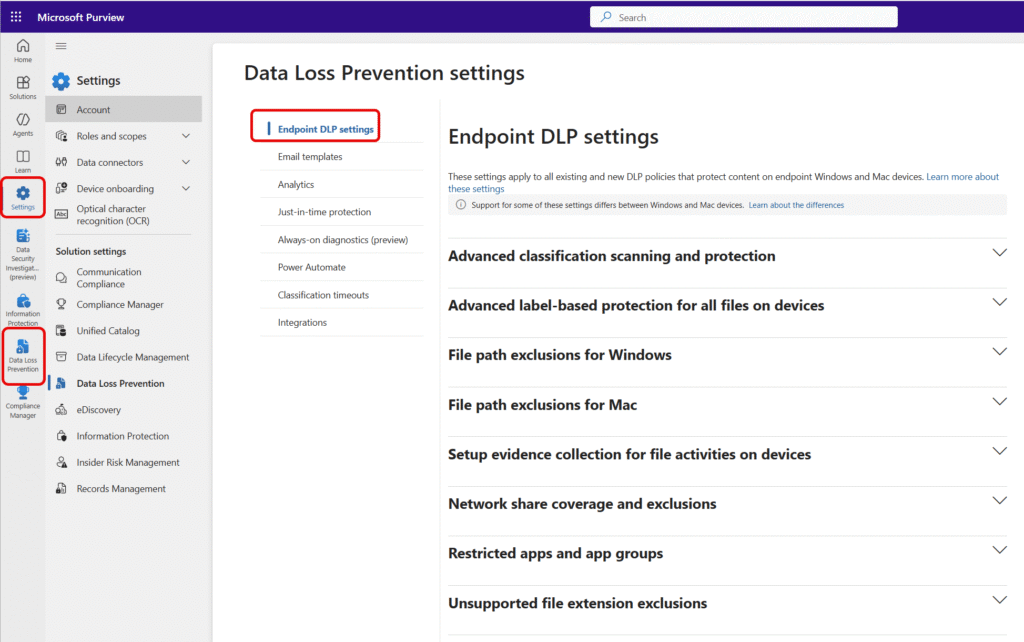
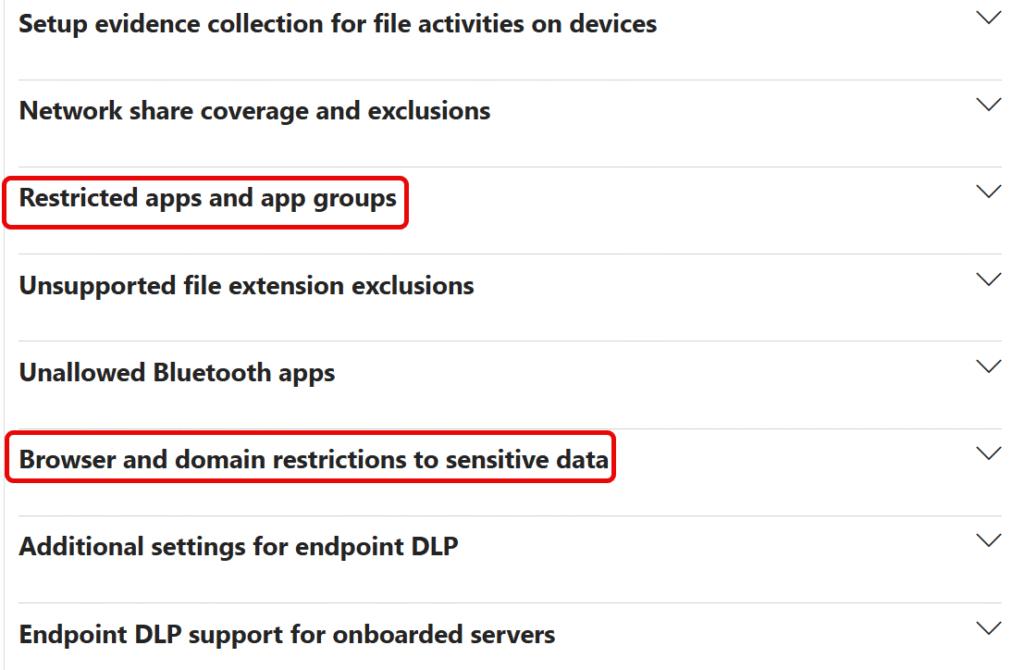
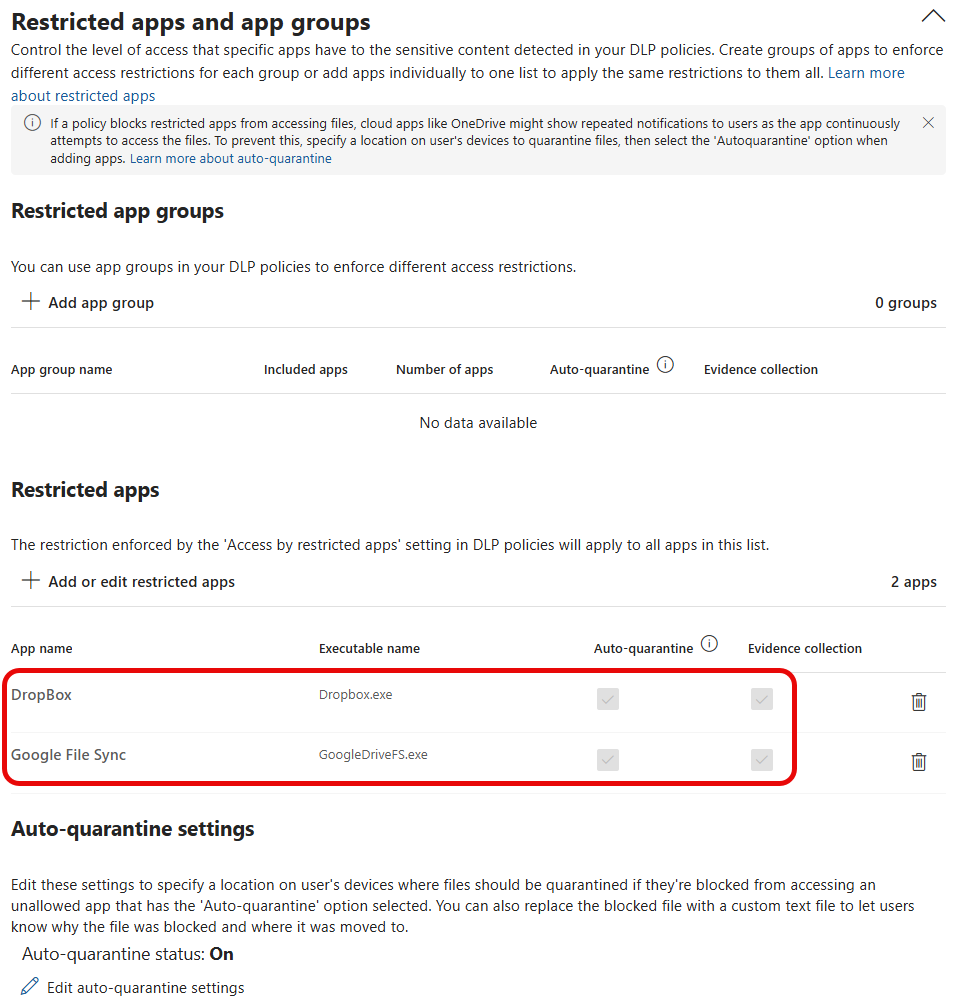
Step 2A: Restricted apps and app groups
Goal for this step is to Block Sync-tools like Dropbox.exe and GoogleSyncFS.exe using Restricted apps and app groups’
Step 2B: Browser and domain restrictions to sensitive data
Goal for this step is to Block unallowed browsers to force browser communication to happen in allowed browsers (Edge or supported browsers with Purview extension like Chrome & Firefox)

Unallowed browsers
Step 2C: Block Service Domains
Goal for this step is to Block domains for Dropbox, WeTransfer, Google Drive
How to find the relevant domains to block ?
Sample: Google Drive
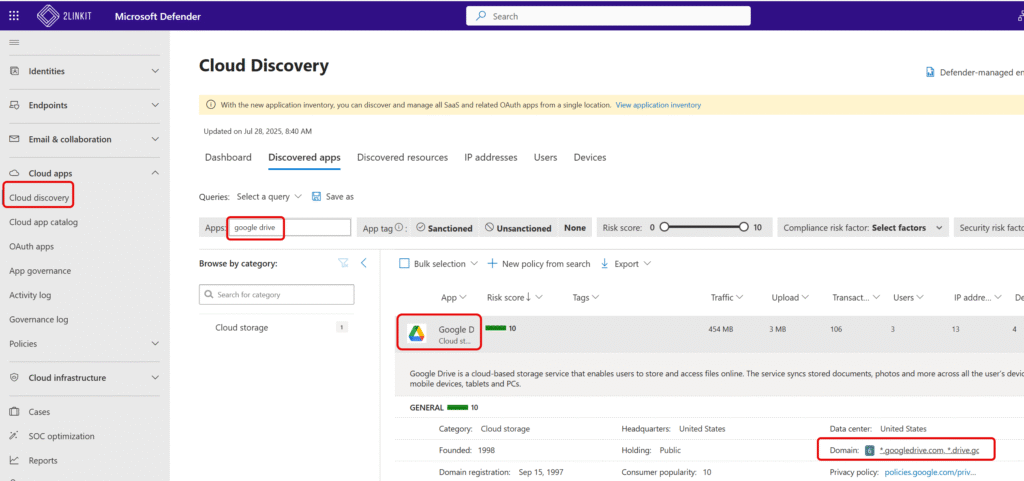
Google Drive domains to block per 28th July 2025
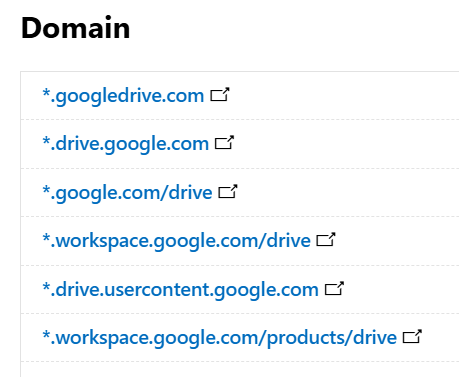
Microsoft DLP limitations – only domain; not folder support
Currently, Microsoft DLP doesn’t support folder blocking, only domain blocking.
Therefore these URLs cannot be blocked
*.google.com/drive
*.workspace.google.com/drive
*.workspace.google.com/products/drive
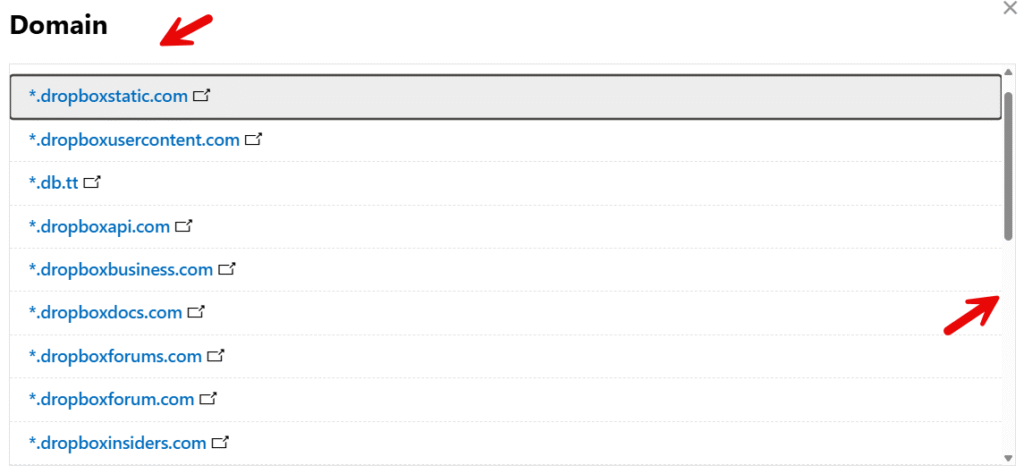
DropBox to block per 28th July 2025
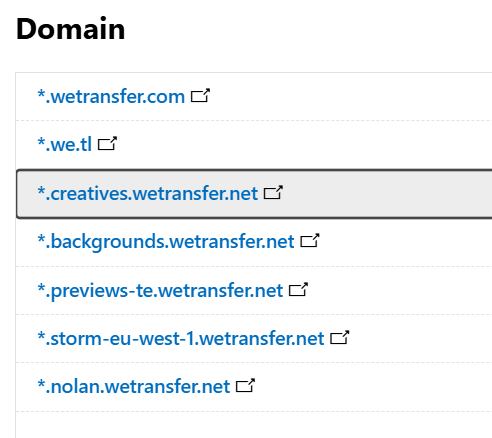
WeTransfer domains to block per 28th July 2025
Complete list of domains per 28th July 2025
WeTransfer:
*.nolan.wetransfer.net
*.storm-eu-west-1.wetransfer.net
*.previews-te.wetransfer.net
*.backgrounds.wetransfer.net
*.creatives.wetransfer.net
*.wetransfer.com
*.we.tl

Google Drive:
*.googledrive.com
*.drive.google.com
*.workspace.google.com
*.drive.usercontent.google.com

DropBox:
*.dropbox.com
*.dropboxapi.com
*.dropboxbusiness.com
*.dropboxdocs.com
*.dropboxforums.com
*.dropboxforum.com
*.dropboxinsiders.com
*.dropboxmail.com
*.dropboxpartners.com
*.dropbox.zendesk.com
*.getdropbox.com
*.dropboxbusinessblog.nl
*.dropboxbusinessblog.fr
*.dropbox.co.uk
*.dropboxbusinessblog.de
*.dropbox.jp
*.dropbox.com.au
*.instructorledlearning.dropboxbusiness.com
*.paper.dropbox.com
*.dropbox.tech
Step 2D: Sensitive service domains (group)
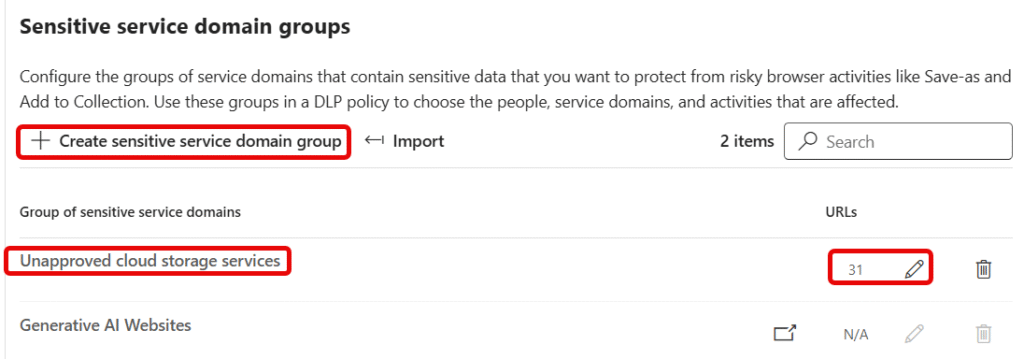
Goal for this step is to Block Sensitive service domains using sensitive service domain group.
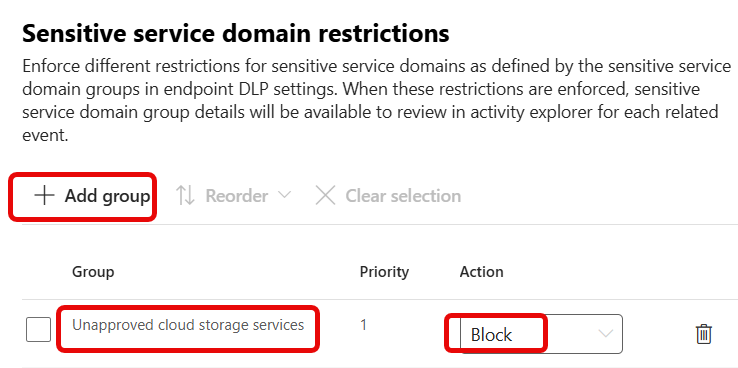
Create a new sensitive service domain group (like ‘Unapproved cloud storage services’) – and add the domains above. You can also import CSV-file using Import-button. I have provided file here on my Github.
Step 3: Purview Data Loss Prevention (DLP) Policy
Now we can move on in creating the actual DLP policy which can be targeted to specific users/devices.
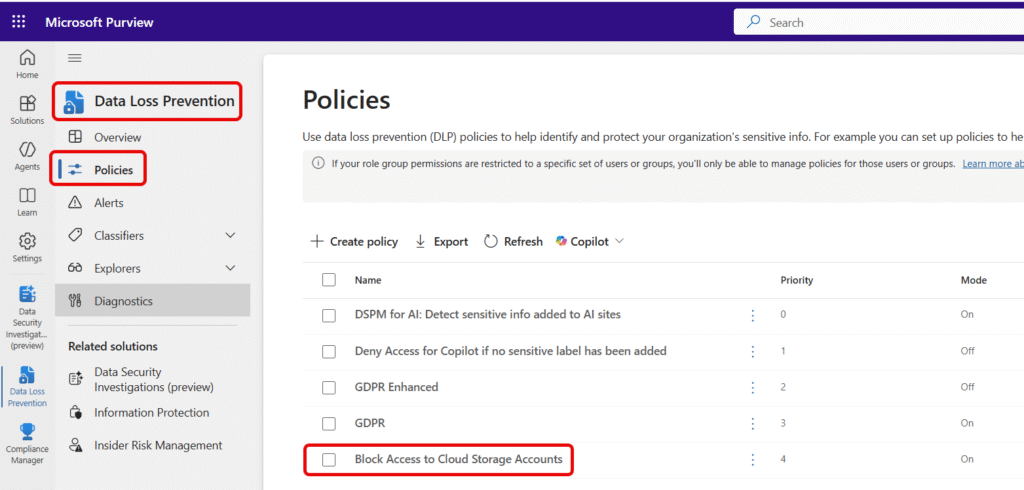
Create DLP Policy
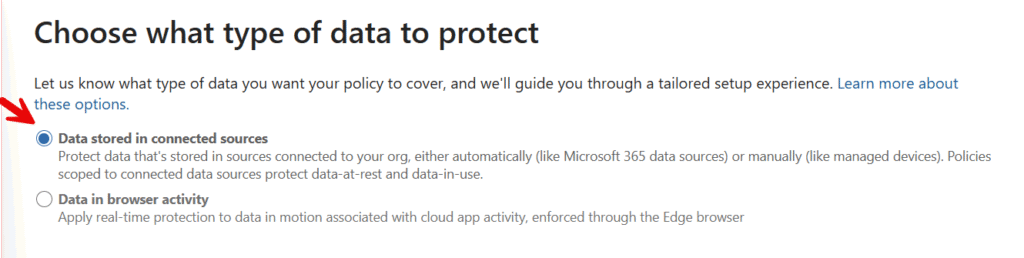
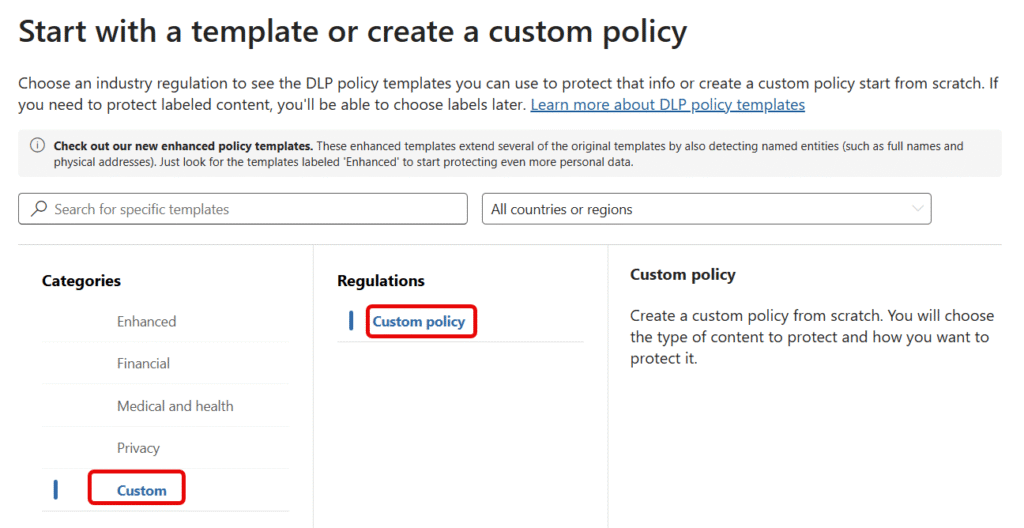
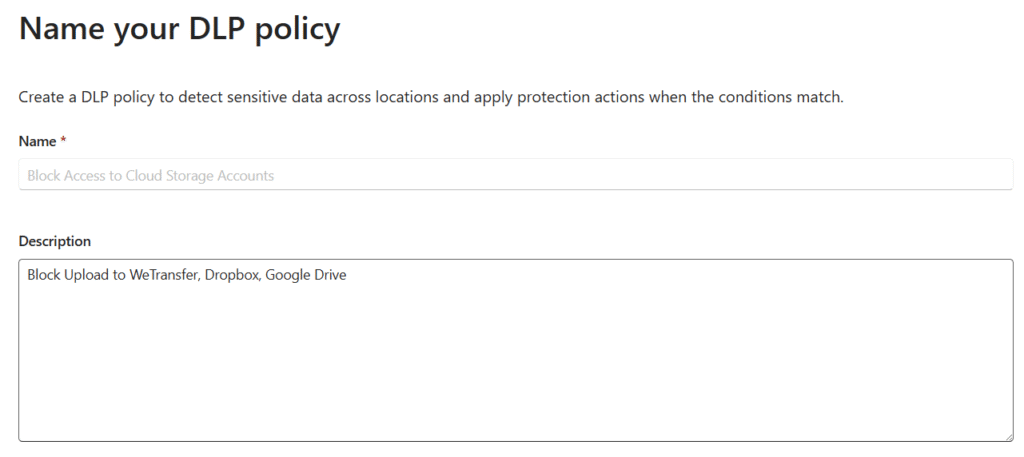
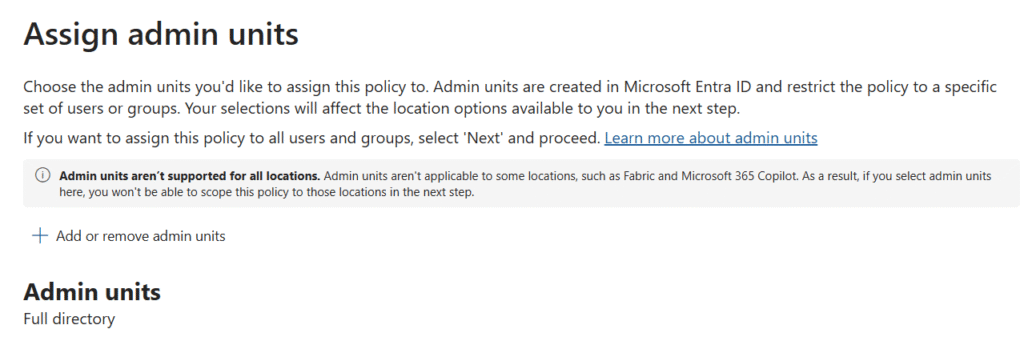
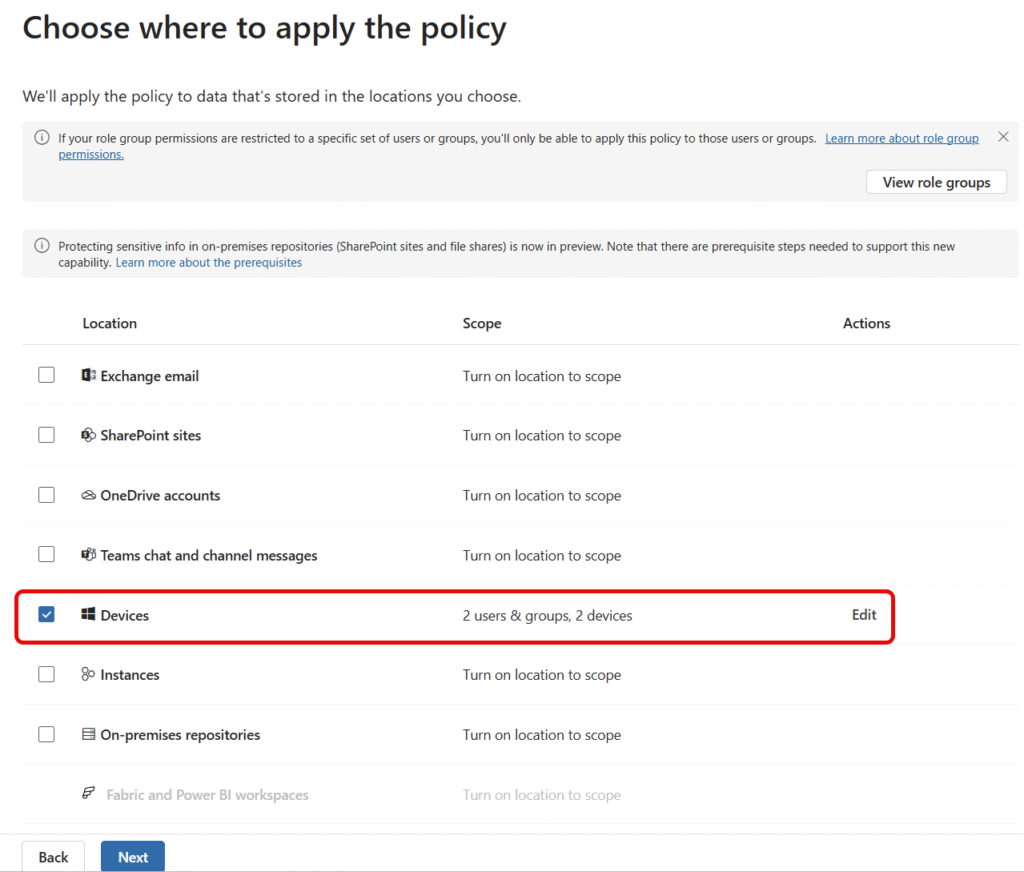
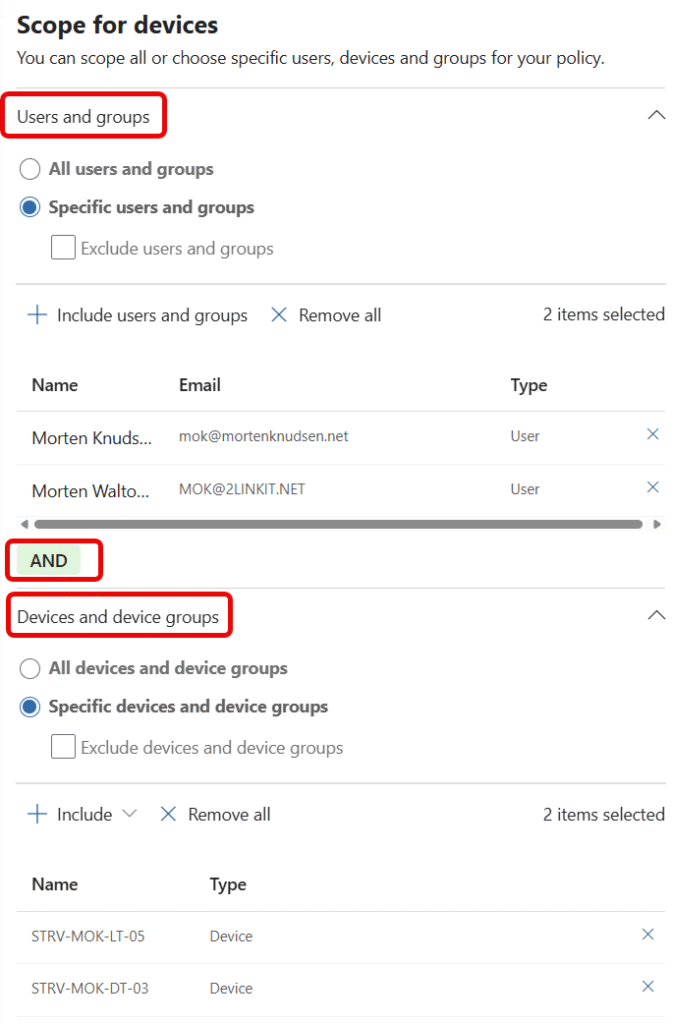
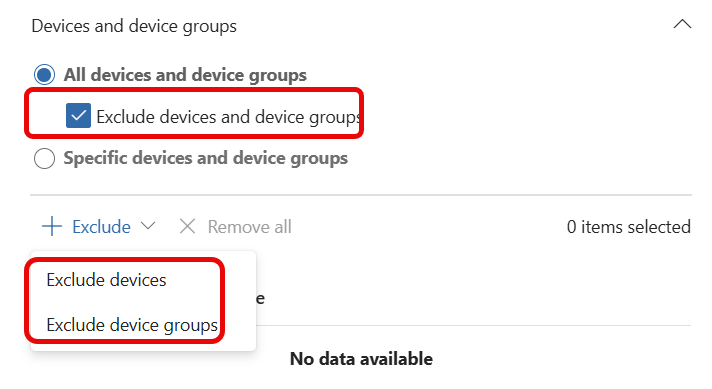
How to implement global settings with exceptions (exclude groups) ?
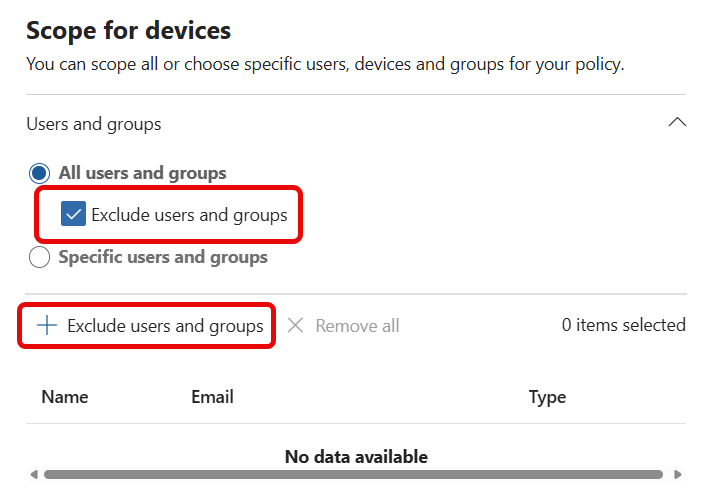
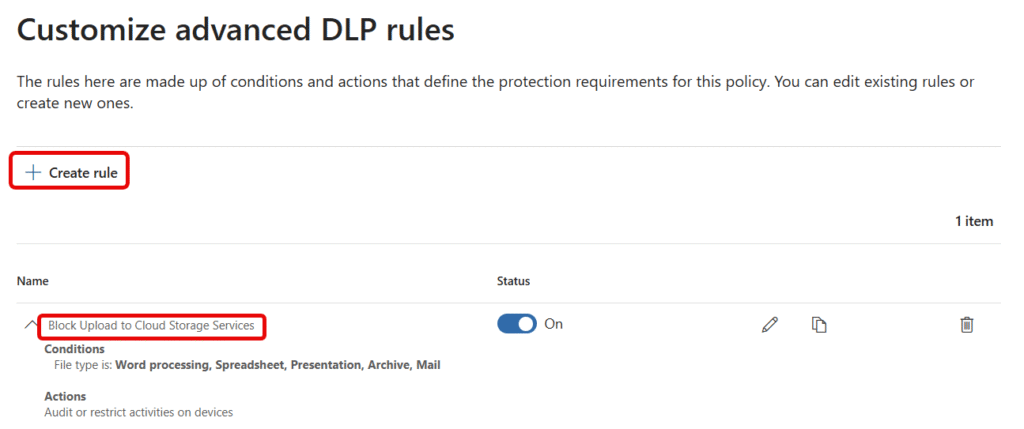
Create DLP Rule (inside the DLP Policy)
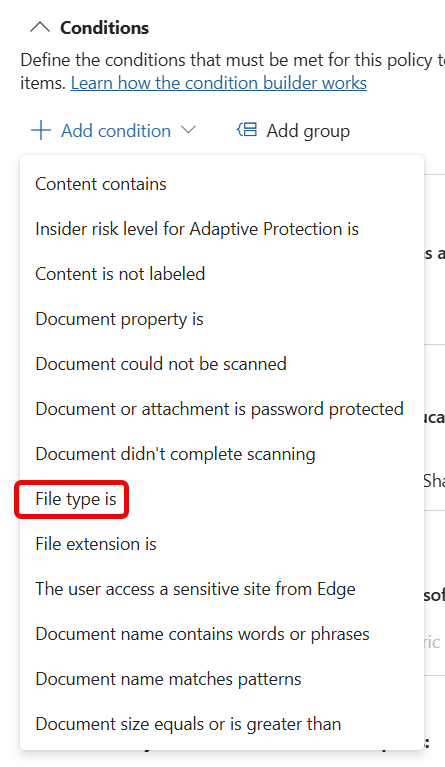
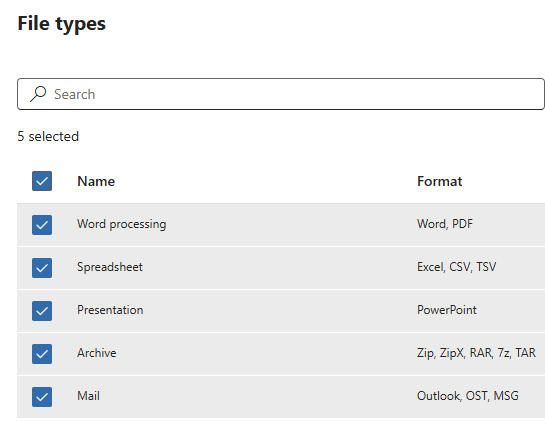
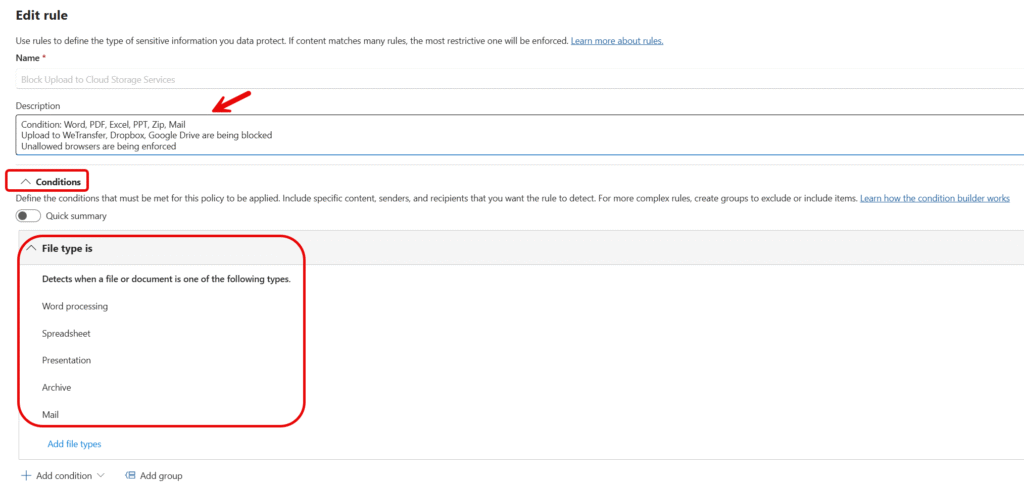
DLP Rule: Conditions
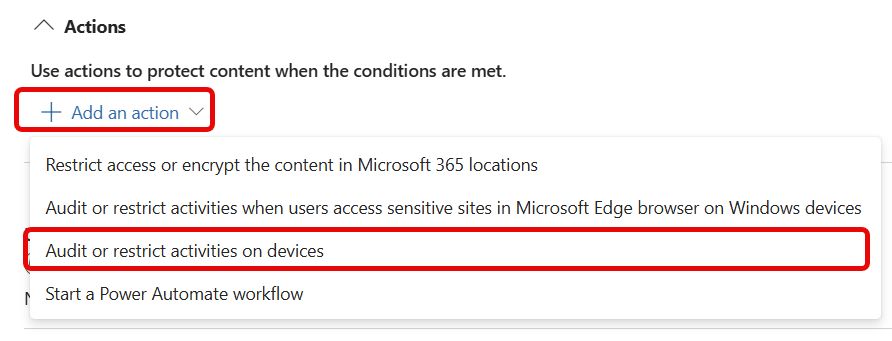
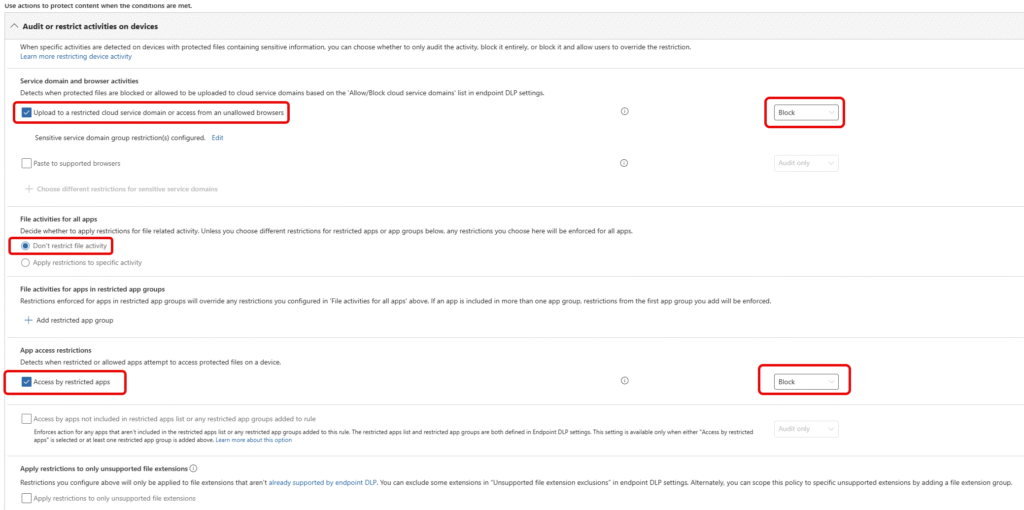
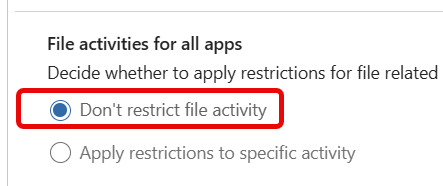
DLP Rule: Actions


DLP Rule: Notifications
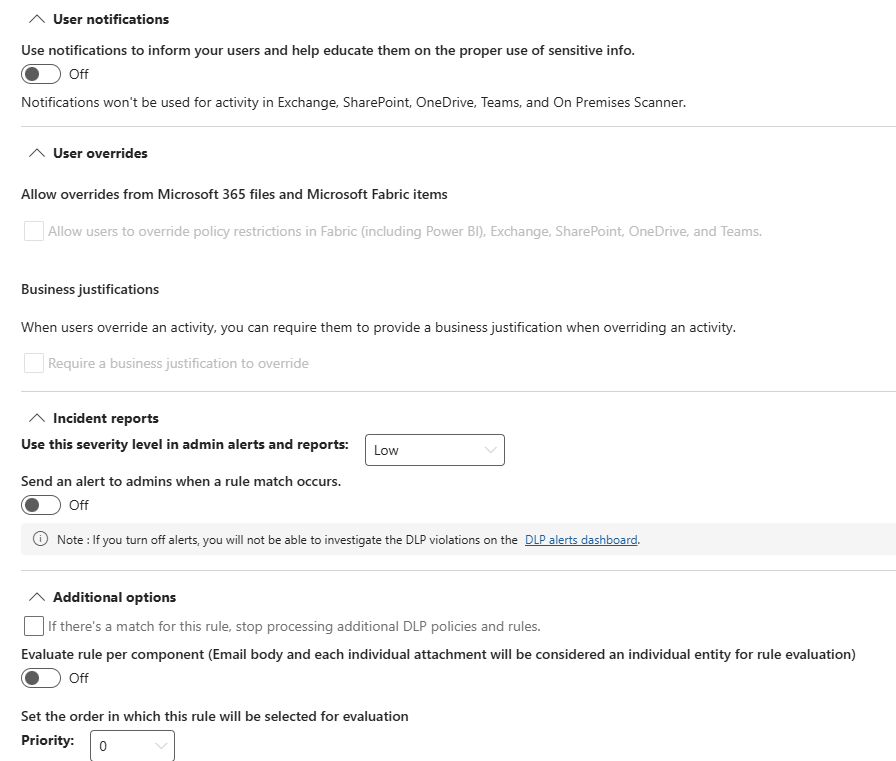
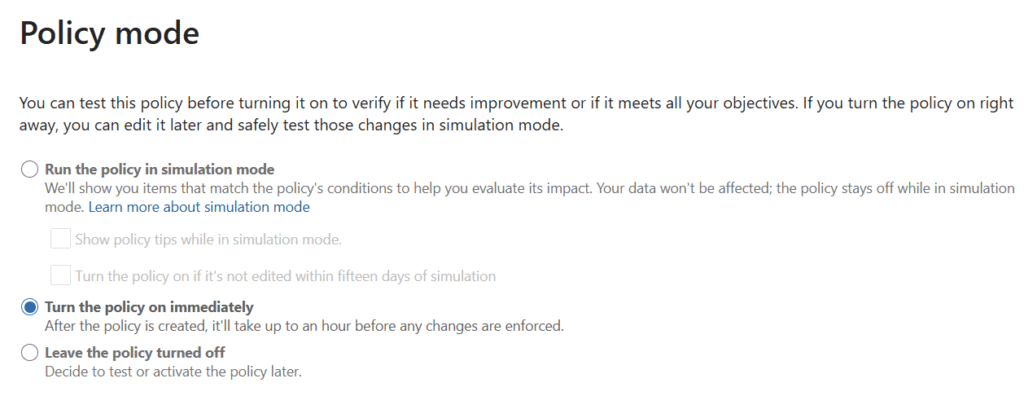
Step 4: Wait up to 24 hours !!
Now wait until Policy Sync has completed
You can verify status on both policy and devices to see status.
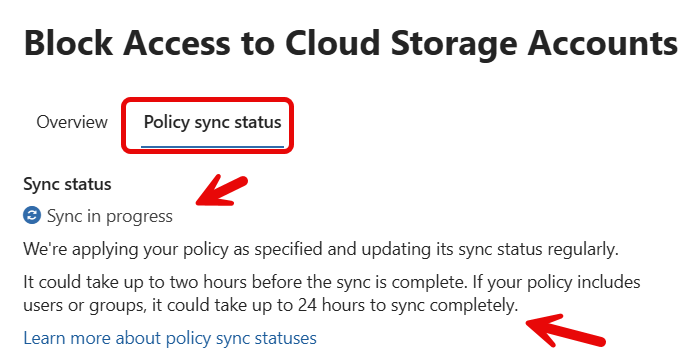
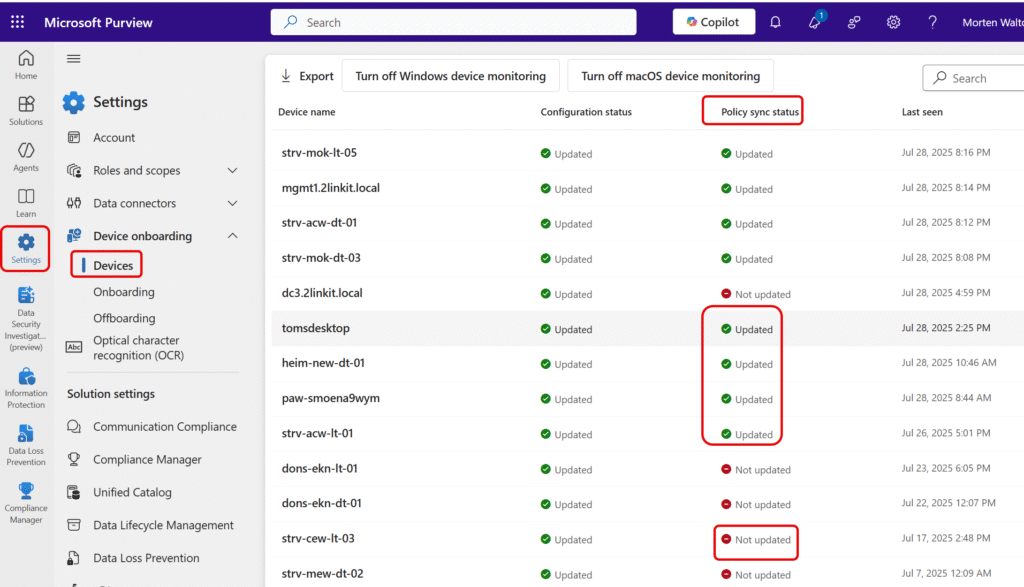
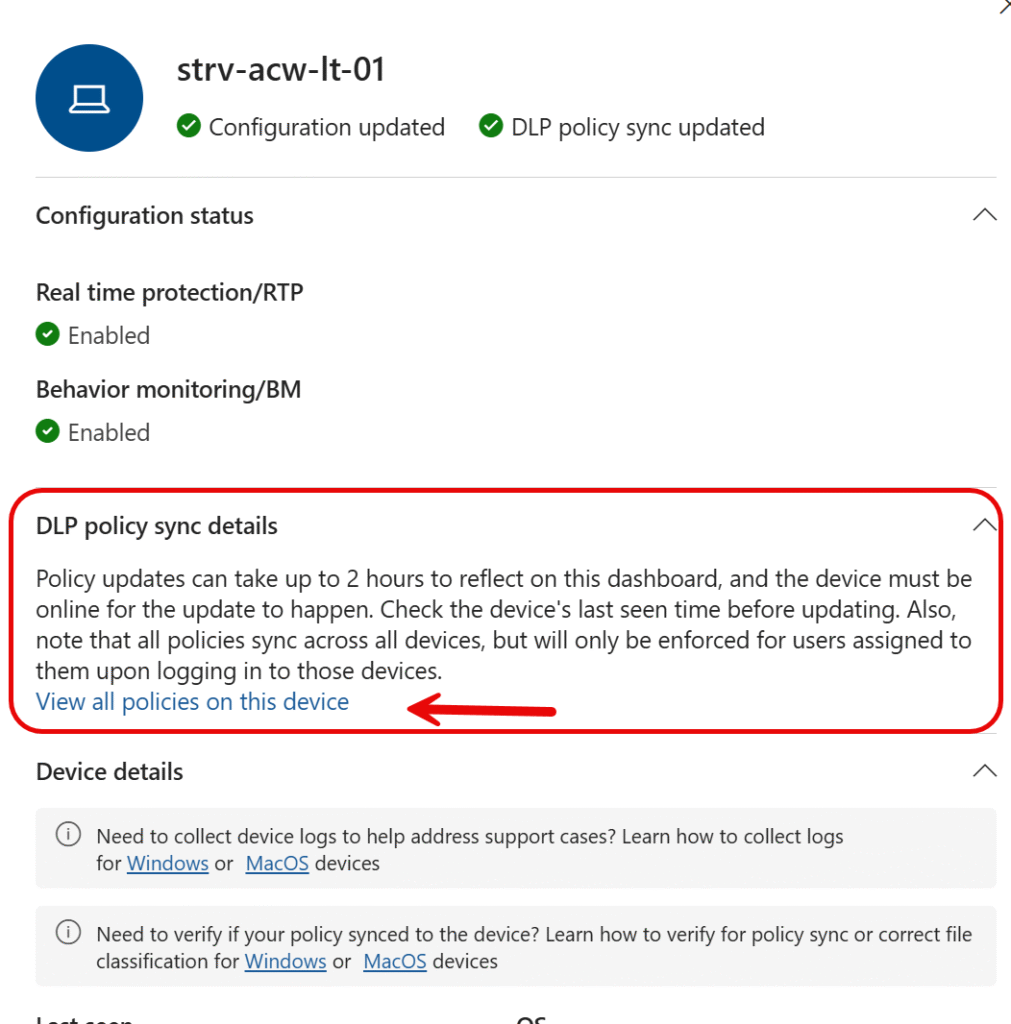
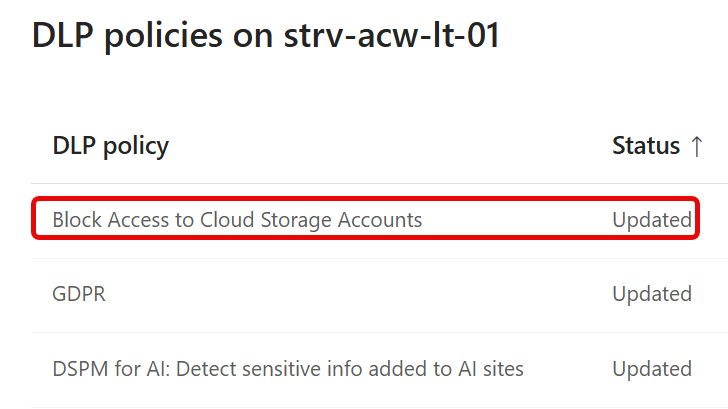
Step 5: Verify Upload is Blocked, while Download is Allowed
Verify Upload has been blocked
Try to go to Wetransfer.com
Add file, enter mail address (to) – and click on Transfer
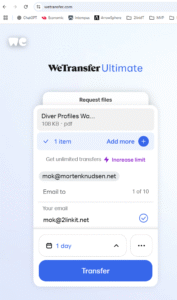
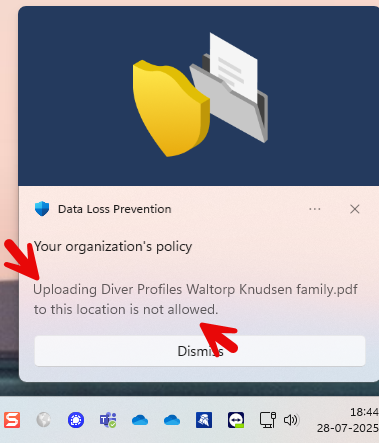
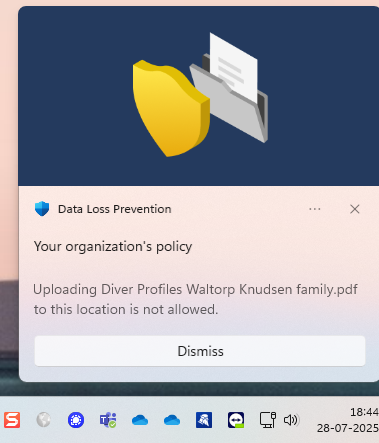
Now you should see this popup showing that Upload has been blocked
Verify Download is still working
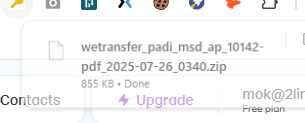
If you receive a link from for example WeTransfer with a waiting file, you should still be able to download that, as download hasn’t been blocked.

Verify use of Unallowed browsers are working
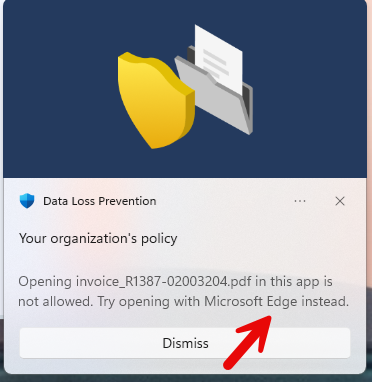
Here is an example when I try to use WeTransfer through Opera browser
Step 6: Ensure additional storage providers are restricted in Outlook on the web
By default additional storage providers are allowed in Office on the Web (such as Box,
Dropbox, Facebook, Google Drive, OneDrive Personal, etc.). This could lead to
information leakage and additional risk of infection from organizational non-trusted
storage providers. Restricting this will inherently reduce risk as it will narrow
opportunities for infection and data leakage.
The setting AdditionalStorageProvidersAvailable allows users to open certain external files while working in Outlook on the web. If allowed, keep in mind that Microsoft doesn’t control the use terms or privacy policies of those third-party services.
What it blocks:
- Users cannot add third-party storage accounts to OWA.
- Users cannot browse or attach files from third-party storage when composing emails.
- Users cannot upload attachments to third-party storage via OWA.
What it does not block:
- It does not block downloading attachments from emails.
- It does not block uploading/downloading attachments to/from OneDrive for Business, unless you specifically disable OneDrive access using a different setting.
- It does not block uploading a file directly from the local computer when composing an email.
Restrict additional storage providers are restricted using PowerShell:

1. Connect to Exchange Online using Connect-ExchangeOnline
Connect-ExchangeOnline

2. Run the following PowerShell command:

Set-OwaMailboxPolicy -Identity OwaMailboxPolicy-Default -AdditionalStorageProvidersAvailable $false

3. Run the following Powershell command to verify that the value is now False:

Get-OwaMailboxPolicy | Format-Table Name, AdditionalStorageProvidersAvailable
Excellent. Have recently designed a DLP plan including that scenario
Can we create a way to include all files within “DLP Rule: Conditions”? Now you are selecting all possible file types, but some file types are missing then.
I have created a similar policy for freemail domains – where we dont want people to upload files to freemail domains, the policy works great when I do some testing with the folders not synced to OneDrive. and If the folder in synced to OneDrive it does let the user upload files to freemail domain – any thoughts or suggestions?
Great post! For companies being on Google Workspace, is there a way to distinguish URLs that are personal /non-company MyDrive vs company MyDrive or Shared Drive? Similar question for Microsoft OneDrive may be relevant.
It’s good article thanks it’s working with me, but how to allow company domain and block microsoft personal account
What else would cause this not to work? Your instruction are clear – thank you. We want to use “block with override” for google drive, as we have specific business cases. I am just trying to get something working.
It does seems to work but not immediatly. I tested it with wetransfer.
If i try to upload a file the first time with wetransfer upload succeeds but if i try the same file 10 seconds later i get a message from purview that has prevented to upload this file to this location.
The file i tried was synced with onedrive
I seems a sort of caching. What can i do to prevent this behaviour